Search by tag: git

7 articles
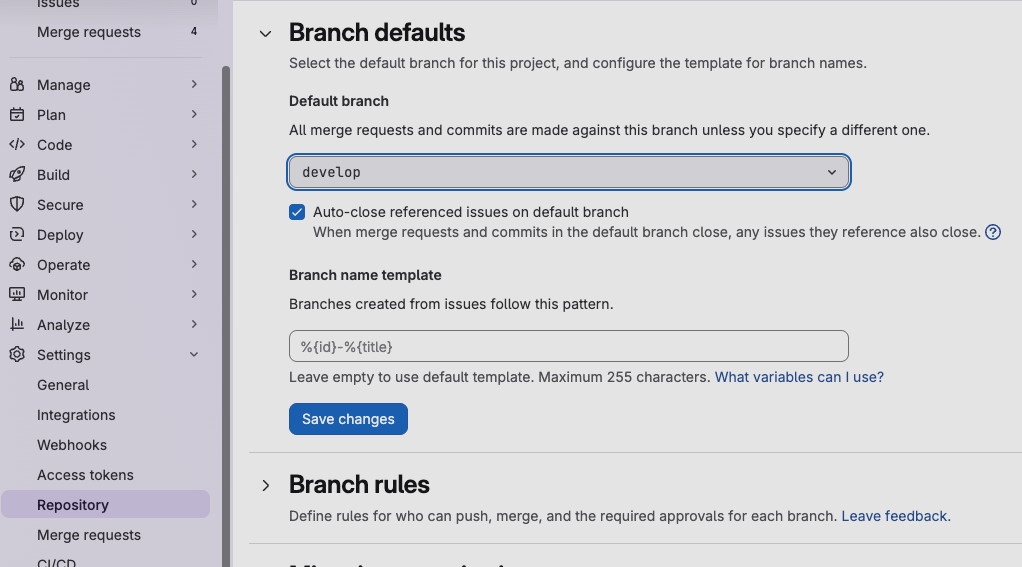
GitLab: set a branch as default target for merge requests

Do you also find it tedious to have to change the target branch, each time you create a merge request? Or worse, the @#$% moment when you realise you forgot to change it from the default master/main at all?

To avoid such inconvenience in the future, you can set another default branch in Settings => Repository => Branch defaults.

Repository settings in GitLab

[Git] List the files which have been modified between two commits/tags

git

I needed to know the exact list of files that had been modified between my last two tags:

git diff --name-only v2.0.0 v2.0.1

You can replace the tags by commits:

git diff --name-only SHA1 SHA2
git diff --name-only HEAD~10 HEAD~5

Source

Merge two versions of a file with git-checkout

git

I have slightly different i3 configuration files between my desktop and laptop computers. In this case, the laptop keyboard is missing a Play/Pause multimedia key. This is where the two files differ: the laptop has a different key binding for running the music player.

Having recently added new key bindings to the desktop configuration, I wanted to merge those new lines into the laptop configuration file, without overwriting its specific lines. After trials and errors and thanks to precious clues found on the Internet, I found the patch flag of git-checkout. From the branch specific to my laptop configuration, I ran:

$ git checkout -p master .config/i3/config

This displays an output similar to git-diff, based on the local file .config/i3/config and the one in the branch 'master'. For each conflicts, Git asks:

Apply this hunk to index and worktree [y,n,q,a,d,/,j,J,g,e,?]?

I answered 'n'o to preserve the part specific to the laptop, and 'y'es for the new key bindings I wanted to copy.

Output of $ git checkout -p

Nuke (remove all traces) of a file in Git history

git

First note: if you are not alone on the project, consult with your colleagues before doing this. Because we are about to rewrite history and other contributors will be forced to manually rewrite their history too.

Second note: if what you want to remove is sensitive material (e.g. passwords), consider everything compromised. Unless you are 100% sure that absolutely no one has had any access to your repository. And you are not, are you? Even with your super-secure unbreakable security measures... No, you are not.

Okay, you have been warned.

Let's say we want to remove all traces of a file named "hardcoded_passphrase.txt". We need the sha1 of the commit where this file first appeared. If you don't know, just use the first commit. In this example, the sha1 is bb9c2d4:

$ git filter-branch --index-filter 'git update-index --remove path/to/hardcoded_passphrase.txt' bb9c2d4..HEAD
$ git push --force --verbose --dry-run
$ git push --force

Source

How to restore a branch deleted too quickly in Git?

git

Having still not the automatic reflexes for applying a successful Git branching model, I cleaned up my working repository a little too fast by deleting a hot-fix branch after merging it into the master branch.

$ git branch -d hotfix-2014062501 
Deleted branch hotfix-2014062501 (was 742134c).

When I came back to the development branch I was working on before the emergency, I realised that I just forgot to merge the hot-fix into it.

As often with Git, a simple solution exists. We only need the sha1 of that branch last commit, which was conveniently displayed in the output of the deletion command above, and execute this one-liner:

$ git branch hotfix-2014062501 742134c

The branch should now be back as if nothing happened:

$ git branch -v
[...]
hotfix-2014062501        742134c some helpful comment

Source