Archives: March 2026

3 articles
How to run two Android Studio instances on macOS

If you're an Android developer who juggles both professional and personal projects, you've probably faced this dilemma: you want to experiment with new plugins, test beta features, or try out different configurations on your personal projects—but you can't risk breaking your stable, production-ready setup.

The solution? Run two independent copies of Android Studio on the same Mac. This guide walks you through creating a completely isolated custom instance alongside your regular one, with separate configurations, caches, and settings.

Step-by-step setup

1️⃣ Copy the Android Studio bundle, in order to update its configuration.

First, create a duplicate of your existing Android Studio application. Here I had already manually installed another copy, but you could directly duplicate your original regular installation, that should be located in /Applications/Android\ Studio.app

Adjust the paths to match your actual installation location.

ORIG="$HOME/Applications/Android Studio Perso/Android Studio Perso.app"
COPY="$HOME/Applications/Android Studio Perso/Android Studio Perso-copy.app"

cp -R "$ORIG" "$COPY"

2️⃣ Remove macOS quarantine attributes

macOS marks downloaded or copied applications with a quarantine flag that can prevent them from launching properly:

xattr -dr com.apple.quarantine "$COPY"

3️⃣ Clear immutable flags

Some installations may have immutable flags set:

chflags -R nouchg "$COPY"

4️⃣ Configure separate directories

Find and edit the idea.properties file inside the copied application:

FILE=$(find "$COPY" -type f -name idea.properties)
vi "$FILE"

Uncomment these four lines, and modify the two first ones to point to your personal configuration directory:

idea.config.path=${user.home}/.AndroidStudioPerso/config
idea.system.path=${user.home}/.AndroidStudioPerso/system
idea.plugins.path=${idea.config.path}/plugins
idea.log.path=${idea.system.path}/log

Save and exit. This ensures your custom instance stores all settings, caches, and logs separately from your regular one.

5️⃣ Clean recent projects list (optional)

Remove the cached recent projects file to start fresh:

rm -f "$HOME/.AndroidStudioPerso/config/options/recentProjects.xml"

6️⃣ Launch the new instance

Open your copied application:

open "$COPY"

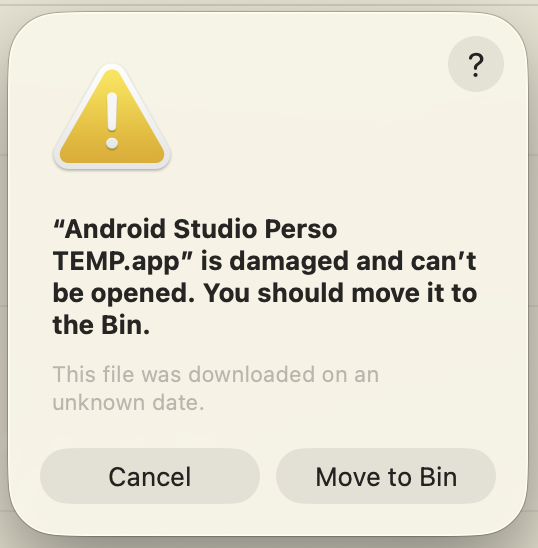
On first launch, macOS may display a security popup. Click Cancel, then go to System Settings > Privacy & Security and authorize the application to run.

The security popup preventing the copy to be opened

Authorize the copy of Android Studio in Security settings

7️⃣ (Optional) Overwrite your previous copy

If you duplicated a previous custom installation:

rm -rf "$ORIG"
mv "$COPY" "$ORIG"

The two versions appear in search

GitLab: set a branch as default target for merge requests

Do you also find it tedious to have to change the target branch, each time you create a merge request? Or worse, the @#$% moment when you realise you forgot to change it from the default master/main at all?

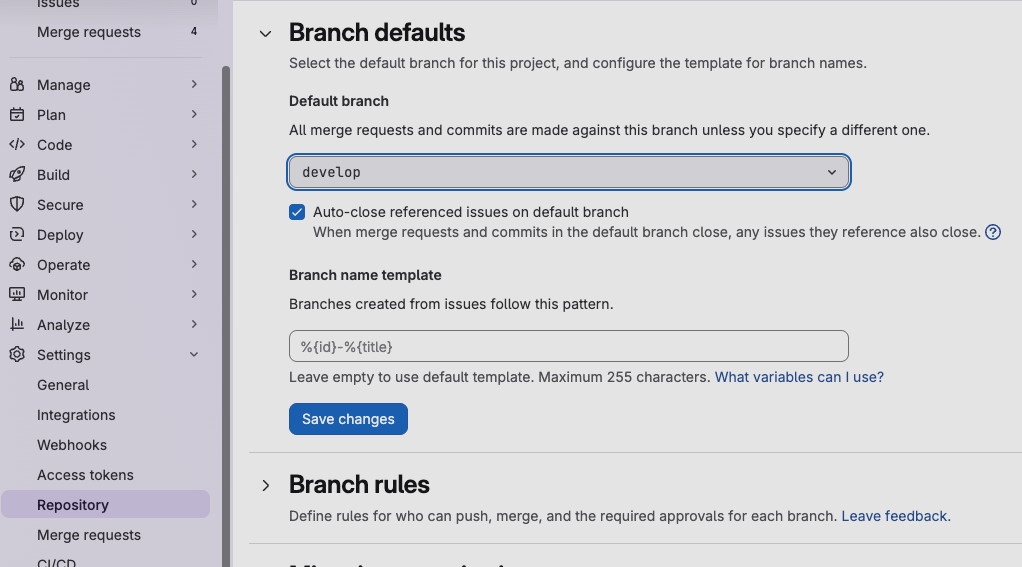
To avoid such inconvenience in the future, you can set another default branch in Settings => Repository => Branch defaults.

Repository settings in GitLab

How to test Firebase Analytics events in real time

iOS

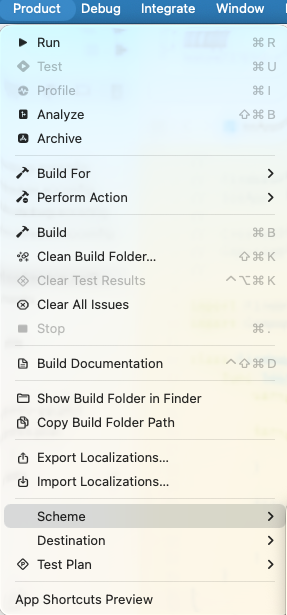
In Xcode, add the argument -FIRAnalyticsDebugEnabled in a scheme:

  • Product => Scheme => Edit Scheme
  • In the new window: Run => Arguments tab => add the argument in Arguments Passed On Launch

Product menu in Xcode

Edit Scheme menu in Xcode

Scheme window in Xcode

Android

Run the following ADB command in the terminal: adb shell setprop debug.firebase.analytics.app my.app.pp

Run the app, go to the Firebase Console to see your events in Realtime Analytics.