Search by tag: android
6 articles
How to test Firebase Analytics events in real time
iOS
In Xcode, add the argument -FIRAnalyticsDebugEnabled in a scheme:
- Product => Scheme => Edit Scheme
- In the new window: Run => Arguments tab => add the argument in Arguments Passed On Launch
Android
Run the following ADB command in the terminal:
adb shell setprop debug.firebase.analytics.app my.app.pp
Run the app, go to the Firebase Console to see your events in Realtime Analytics.
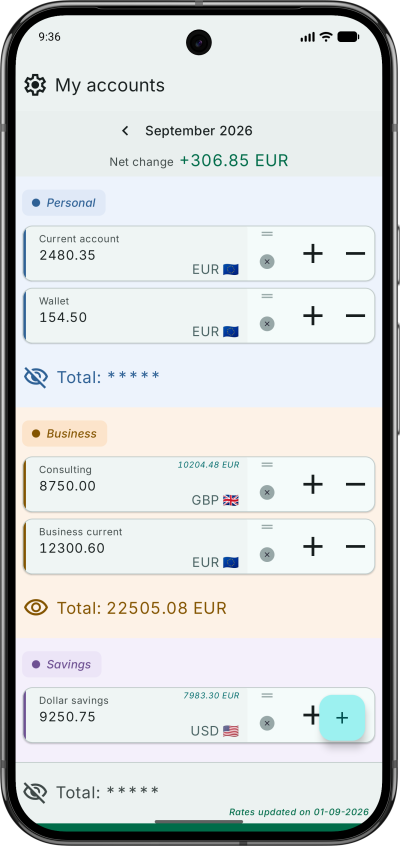
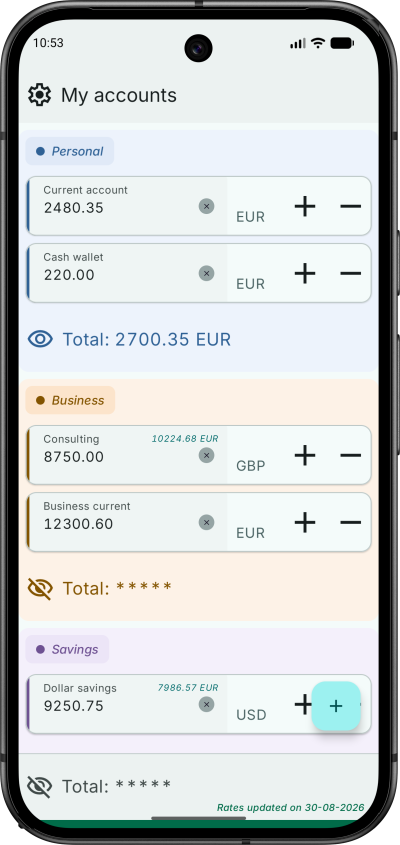
My Simple Account Manager
I built a small utility app with Jetpack Compose to keep my accounts and spending under control. The project served two main purposes:
- Compose practice – develop a fully functional UI using Jetpack Compose, including a LazyColumn, swipe gestures (left/right) for extra actions, and drag‑and‑drop reordering of rows.
- Architecture practice – implement a classic MVVM stack with all the usual layers of a traditional app: network calls, queries to a local Room database, and read/write access to the device’s file system.
Main features
- Create, edit, and delete accounts.
- Fetch currency rates from an API and automatically convert amounts to the selected currency.
- Support all current world currencies.
- Add or subtract amounts from an account balance.
- Import and export data in JSON format for easy backup and restore.
Hair Technique Pro
This is my very first official release of a personal Android app on Google Play, and it’s also my first project built entirely with Jetpack Compose.
I began my mobile development career using Java and XML layouts. After spending several years maintaining legacy code, it took some time to become proficient with Jetpack Compose and its recommended architecture and best practices.
With this initial app I was able to experiment with core Compose components, Material 3 theming, navigation patterns, state management, and play with simple animations.
Accessing your application database from Android Studio
Open the Terminal window (Alt + F12) or:
Then list your devices with the adb command. This will display both running emulators and connected devices:
$ adb devices
List of devices attached
emulator-5554 device
Use the device name to open a connection:
$ adb -s emulator-5554 shell
generic_x86:/ $
To avoid a Permission denied error while trying to access your application files, use the run-as command:
generic_x86:/ $ run-as com.your.package.example sqlite3 databases/yourdatabase.db
Accessing your application files from Android Studio
While learning to play with SQLite databases in Android, I wanted to check the .db file generated by my code in the emulator. I was unable to find it directly with the built-in Files application because it doesn't let us see system folders.
Fortunately, Android Studio 3+ comes with the Device File Explorer, which allows us to browse system files and access the root data folder. To open it, go to View > Tool Windows > Device File Explorer. My application data was stored in /data/data/.
How to see the data stored in sqlite in android studio using genymotion as emulator